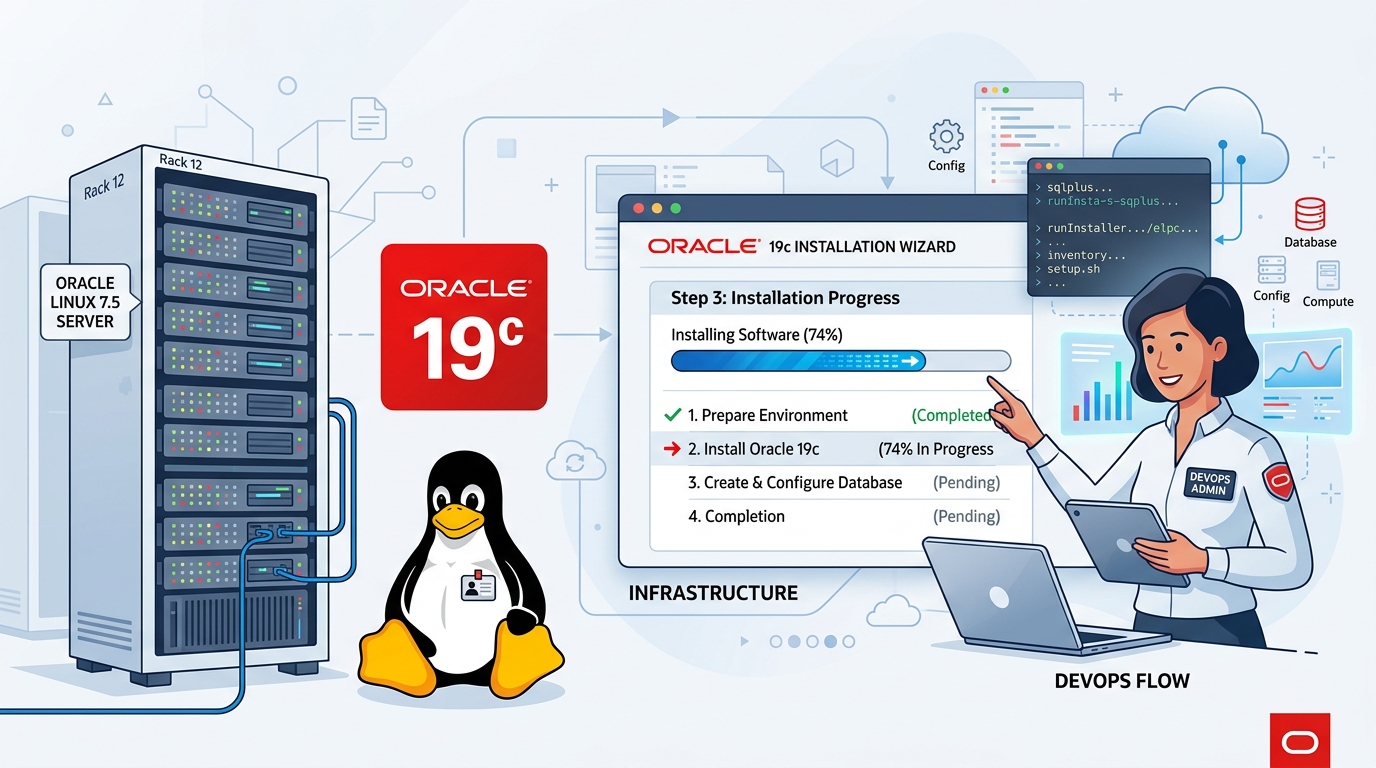
Install Oracle 19c Database Software only on Oracle Linux 7.5
How to Install Oracle 19c Database Software-Only on Oracle Linux 7.5
This guide explains how to install only the Oracle Database 19c software (no database creation) on Oracle Linux 7.5.
Great for DBAs, learners, and lab setups.
📘 Introduction
Oracle Database 19c is the long-term support release and widely used in enterprises.
Often, DBAs install only the software first and create the database later using DBCA or scripts.
This tutorial shows the step-by-step process to install Oracle 19c software only on Oracle Linux 7.5.
🧮 1. System Requirements
Minimum Requirements
-
OS: Oracle Linux 7.5 (x86_64)
-
RAM: 4 GB (minimum), 8–16 GB recommended
-
Swap: Equal to RAM up to 16 GB
-
Storage: 20–30 GB
-
Filesystem: XFS or EXT4
🧱 2. Prepare OS User & Groups
Login as root and create the Oracle user and groups:
groupadd oinstall
groupadd dba
groupadd oper

useradd -g oinstall -G dba,oper oracle
passwd oracle
Create installation directories:
mkdir -p /u01/app/oracle/product/19c/dbhome_1
mkdir -p /u01/app/oraInventory
chown -R oracle:oinstall /u01
chmod -R 775 /u01
📦 3. Install Required Packages
Run the following as root:
yum install -y binutils gcc gcc-c++ glibc glibc-devel \
glibc-devel.i686 libaio libaio-devel libgcc libstdc++ \
libstdc++-devel ksh make sysstat unixODBC unixODBC-devel \
compat-libcap1
Enable Oracle Linux repository if missing:
yum install oraclelinux-developer-release-el7
yum update -y
⚙️ 4. Configure Kernel Parameters
Edit /etc/sysctl.conf:
fs.aio-max-nr = 1048576
fs.file-max = 6815744
kernel.shmall = 2097152
kernel.shmmax = 8589934592
kernel.shmmni = 4096
kernel.sem = 250 32000 100 128
net.ipv4.ip_local_port_range = 9000 65500
net.core.rmem_default = 262144
net.core.rmem_max = 4194304
net.core.wmem_default = 262144
net.core.wmem_max = 1048576
Apply changes:
sysctl -p
📁 5. Configure Oracle User Limits
Edit /etc/security/limits.conf:
oracle soft nofile 1024
oracle hard nofile 65536
oracle soft nproc 16384
oracle hard nproc 16384
oracle soft stack 10240
oracle hard stack 32768
oracle hard memlock unlimited
oracle soft memlock unlimited
🔑 6. Set Oracle User Environment
Login as oracle user and edit ~/.bash_profile:
export ORACLE_BASE=/u01/app/oracle
export ORACLE_HOME=/u01/app/oracle/product/19c/dbhome_1
export PATH=$ORACLE_HOME/bin:$PATH
export LD_LIBRARY_PATH=$ORACLE_HOME/lib
Reload profile:
source ~/.bash_profile
📥 7. Download Oracle 19c Software
Download from Oracle:
File: LINUX.X64_193000_db_home.zip
Place the file in a directory accessible to the oracle user:
cd /u01/app/oracle/product/19c/dbhome_1
unzip LINUX.X64_193000_db_home.zip
🚀 8. Run the Installer (Software Only)
Login as oracle user:
cd $ORACLE_HOME
./runInstaller
Choose:
-
Installation Type: Install Database Software Only
-
Edition: Enterprise Edition (recommended)
-
Inventory Directory:
/u01/app/oraInventory -
Group: oinstall
-
Fix any prerequisites if prompted.
The installer will run and at the end, it asks you to run two scripts as root:
/u01/app/oraInventory/orainstRoot.sh
/u01/app/oracle/product/19c/dbhome_1/root.sh
Run them and complete the installation.
🎉 Installation Complete!
You have successfully installed Oracle 19c Database Software Only on Oracle Linux 7.5.
You can now:
-
Create a database using DBCA:
dbca -
Or create a database manually using SQL scripts.